Tuesday, January 15, 2013

Thursday, December 20, 2012

Friday, November 9, 2012
Translating on dotSUB

Subtitle translation jobs are increasing nowadays since improvement on technology helps companies to use more various types of media including videos to promote their services and products. Understanding context of the video is a key for the quality translation and there is nothing better than watching the source video to understand the accurate context while translators are translating subtitles. dotSUB is a video website like Youtube but the big difference is that it provides very straightforward features to translate subtitles online.
Uploading videos
First you have to upload the video to transcribe or translate subtitles. Go to “www.dotsub.com” and simply sign up. It’s free. Click the down arrow button on the top right and click “Post a New video” in the first row.

It will take you to “Upload Your Video” page. You must enter the video title and the short description of the video and then select the language that is spoken in the video. Other text fields are not required fields so ignore them if you want.

Before you select the video file to upload, you will see the following option.
If you opt in this option, other dotSUB users can access your video to transcribe or translate subtitles on it. There is one more thing. The maximum length of the video you can upload is 25 minutes.
Browse the video file you want to upload and select it when you think everything is ready, then click the “Upload” button.

It will take some time to upload the video and get it processed on the dotSUB. The time for processing the uploaded video will be proportioned to the size of the video file.
Once the video is uploaded, you can see the video on the “My Videos” page. Simply click the down arrow button on the top right again and click “My Videos”.

When the video that you uploaded is processed, the thumb nail of the video will be displayed on the My Personal Videos page and you can click on it.

Now you can play the video on dotSUB. Please click Transcribe Video on right.

As you see in the screenshot below, you can do whatever you want about transcribing or translating the subtitle on the video as you watch the video in real time.

Let’s look at the each sections on the screen:
1 Transcription - All lines of subtitles that you add or the existing subtitle will be displayed here. You can also edit and delete the subtitle here.
2 Keyboard Shortcuts - This provides all information that is pretty useful to edit the subtitle though there are only five shortcuts.
3 Add a transcription line - You can add the new line of the subtitle here and you can also adjust the time code of the new line.
4 Other features
Click here to import existing subtitles - You can import the existing subtitle files in srt format.
Export Transcription - You can export the subtitle of the video in srt format.
Delete transcription - You can delete the entire subtitle.
Mark this transcription complete - You can confirm that the subtitle you made is the final by clicking this item.
Go Back to Video Page - You can go back to Video Page and check out if the subtitle you transcribed or translated is displayed correctly.
Benefits
One of the most strong benefit is that translators do not need any specific tools to translate or transcribe the subtitle of the video, and this web based environment of dotSUB is still providing most essential features to edit the subtitles like other traditional subtitle editors. In the perspective of a project manager who must manage the multiple subtitle translation jobs for many different languages, dotSUB can be a very helpful service to manage all the projects in real time.
Although I would say it’s not the perfect service to edit subtitles comparing with other subtitle editors, the simplicity of dotSUB must be the most attractive advantage for people who are seeking the simple, easy and free service for subtitle translation.
Wednesday, September 26, 2012
TRADOS is swindling me
Clients often request to translate their PDF files. Some PDF files are nicely converted to word document files using PDF converting tools such as Nitro PDF or Solid converter. However, the problem is TRADOS sometimes does not generate the correct analysis report about the word count on converted MS word files. It can show massive amount of word count for the single page of the simple document.
In this case, you can't work the file in ttx format for TagEditor since there will be internal tags with every single letters.
Therefore you have to opt out some options in the screenshot below to address this problem.

I also strongly recommend to translate files in the segmented unclean doc or rtf format when you translate them.
Tuesday, September 4, 2012
Game localization: battle in the real world
Once Mass Effect 3 has been announced to be released in Korea, many of Korean gamers were demanding the localized version of the new Mass Effect series. Since the game has a tone of texts for dialogues, descriptions and UIs, the language is the key to fully enjoy the game. There are many games released without the localization in Korean market. Some users pay extra cost to buy a textbook in which there are translations for all dialogues and tips for walkthrough for the title they want to play. So I just wondered how the game localization is done and what kind of effort is needed.
 |
| Call of duty: Modern warfare 3 Korean patch. I don't believe this is officially released by Activision. This shows why the localization service is needed. |
Planning
First of all, decision makers in the game company will decide whether they will localize their titles for local markets or globalize them for the international market. Once it’s decided, the localization project manager will plan entire schedule for the localization and assign appropriate resources for each stages on the localization process. For example, one or multiple translators or vendors (plus editors and QA specialists) might be needed to translate all texts including UIs, descriptions, dialogues, user manual, official website and packages. If the voice recording is needed, the voice actors and the recording studio will be needed. Normally this planning process must be done before the game released or during the developing stage.
TEP: Translation + Editing + Proofreading
Translation is a vital part of the localization. For the successful localization, the translator must fully understand all contents of the game to localize. However, it is not true that translation resources always understand every context of strings to translate, especially for the game. Translators sometimes receive only strings to translate without any reference materials, especially when they translate system strings like UIs for options, inventories or system messages which will be normally translated first or on the earlier stage during the project. Some games like role playing games or simulation games have numerous in-game texts and, it is definitely a challenging task to translate all those texts following the tight schedule. The project manager could assign multiple resources to translate texts to meet the deadline though the consistency is still one of the major issue to deal with.
 |
| These main menu UIs would be translated in the early stage of the localization process. Unfortunately "Wanted: Weapons of fate" was not localized in Korean version. |
Bug fixing & QA
Humans are not perfect so we always make mistakes. QA specialists and engineers search for problems on translated strings and files where translation is implemented. This is a time consuming task so QA specialists and engineers need patience and sedulousness. There would be a lot of feedbacks and communications among linguists and QA specialists and engineers for fixing mistranslations, refining translations, modifying translated strings to fit in the layout of the interface and vice versa or, fixing the text which went Cyrillic. If there is any voice-over content, there will be a whole lot more work to be done on this stage.
 |
| A terrible typo error is found in "King of Fighters 13". It made "game data" read as "gay data". |
So there will be huge efforts from many people to make a well localized title in the market that would be attractive to gamers to put the title on their “must-buy” list. However, market situation, the reality does not always allow companies to decide to proceed the localization of their titles.
Reality bites
When PS2 was officially released in Korea in 2002, many people in relevant industries expected that Korean gaming market would be extended and richer than before. Especially people in the localization field anticipated that there would be more business opportunities for the game localization service.It looked like successful in the beginning since many Japanese and American game companies actively put their resources for the localization of their titles to succeed the promotion in Korean market. However, the sales did not rewarded their efforts and, the localization has become one of minor options as the time has gone by.

In the end, there will be only chaos...
I don’t know. May be... Chaos does not mean the total collapse of the market. It means the irregularity of opportunities that crowds the market. There are some companies which are still challenging for good localizations of their titles. Meanwhile, Korean gaming market cannot guarantee the ROI for their efforts. The niche market has arisen while the pessimistic perspective has become dominant with traditional platforms such as PC and console including Playstation, Xbox and Wii in Korean market. Localization demands for mobile games for smartphones and tablet PCs like iPad have been dramatically increased these days. Downloadable arcade games for Playstation and Xbox 360 are also new business opportunities for the localization service. I believe that localization service providers can build new types of solutions for these types of games and provide them in different ways in the market.
Friday, July 20, 2012
Introducing E4NET
E4NET is a localization & globalization service company based in Seoul, Korea. The company provides full localization services including translation, editing, proofreading, DTP, QA & testing, compiling, audio recording, etc.The interesting thing is the company has two different business divisions. One is Translation & Globalization division and the other one is Service & Consulting division. E4NET is a key player in the localization service industry in Korea though their IT service and consulting business is taking the bigger portion of the total sales.
Wednesday, March 7, 2012
Solving Problems Related to Cleaning Files in Trados Studio 2009
We sometimes face some problems when we try to clean up translated ttx files. This article is introducing some tips to address those issues. However, it does not matter if you work on SDLX translation files (.itd files).
Here is the link: http://translation-blog.trustedtranslations.com/solving-problems-related-to-cleaning-files-in-trados-studio-2009-2012-02-28.html
Here is the link: http://translation-blog.trustedtranslations.com/solving-problems-related-to-cleaning-files-in-trados-studio-2009-2012-02-28.html
Tuesday, June 28, 2011
Booties from Loc World in Barcelona, Spain

Tuesday, May 3, 2011
Language Weaver
Language Weaver was a software company that developed the real-time machine translation solution. As you see the video in below, the company provided the solution for the government and corporates.
This video was created January 21st 2007 and Language Weaver was acquired by SDL in 2010.
Wednesday, April 27, 2011
Tuesday, December 28, 2010
The magic brush: format painting icon
It’s been really busy last several months working on various projects and I just realized that my very last posting was in August. My life has changed a lot since last August. More precisely saying, 31st of August is a big day to me. I became a father.
By the way, my last posting was about editing format paintings on itd files using TRADOS TagEditor and I just realized there is an easier way to edit format paintings. Take a look at this brush icon on SDL Edit.
By the way, my last posting was about editing format paintings on itd files using TRADOS TagEditor and I just realized there is an easier way to edit format paintings. Take a look at this brush icon on SDL Edit.

This is a magic brush. If you want to edit format paintings on target segments, let’s do this.
First click this brush icon and select the format painting that you want to copy by simply clicking the format painted part.

Select what you want to implement the copied format painting on the target segment.

Now you can see those texts have the same format painting with the source. Just do this until format paintings are same on both the source and target segments.

After editing format paintings on the file by this way, however, you may see the message that there are one or more format painting errors. No worries. This can be fixed on the DTP stage.
Wednesday, August 11, 2010
Use Trados TagEditor to edit format paintings on itd files
It is still difficult to edit format paintings on itd files for many translators and editors. It is pretty sad that it's very hard to change the order of format painting on itd files with SDLX eidtor. Using TRADOS TagEditor, however, you can edit format painting as you want. To do this, I normally take following steps:
- After editing, I check spelling and consistency issues on the file and, save the file after make sure everything's fine.
- Click "Exchange" on the SDLX control pad. The Exchange dialog box is popped up.
- Choose converting SDLX files to TRADOS TagEditor files on the drop-down list.
- Drag the itd file that you want to convert to the TagEditor file to the window and click OK.
- Now you can see the ttx file on the same location and all format paintings on the itd file is displayed as tags on the ttx file, so you can edit these tags and change orders of these tags. Save the file once every thing's fixed.
- Chose harvest translations from ttx file to itd files on the drop-down list on the Exchange dialog box. Drag the fixed and saved ttx file to the window and then click OK.
- Now you can see the format painting order has changed on the itd file as you want.
Sunday, July 25, 2010
The World Is Flat
"The World Is Flat" I finally finished this book. It took me about almost 4 years to finish this book after I bought it.
Basically this book is for Americans. The author, Thomas L, Friedman, tries to demonstrate that world is flattening and show readers, especially Americans, the way how to prepare the future in the context of 11/9 that is represented as a evidence of creating a better world that gives more opportunities of successful and valuable lives to more people around world.
One question followed me after I closed the book. "Is the world still flattening?" and "Is it GOOD?"
What do you think about it?

Basically this book is for Americans. The author, Thomas L, Friedman, tries to demonstrate that world is flattening and show readers, especially Americans, the way how to prepare the future in the context of 11/9 that is represented as a evidence of creating a better world that gives more opportunities of successful and valuable lives to more people around world.
One question followed me after I closed the book. "Is the world still flattening?" and "Is it GOOD?"
What do you think about it?

Tuesday, July 13, 2010
How to start the day
Tones of emils in your outlook inbox are waiting for you and your boss orders you to do something right now. You just need a couple of minutes to take a break and organize all the things to do today. The one thing I use is to make a "to do list" on the little piece of paper and delete one by one as I complete. I just hope the speed I complete each tasks would be faster than speed the new task is added on the list.
Yes, it's totally conveyer belt job in the office. The only difference is you are working with the desktop PC instead of the real conveyer belt.
Yes, it's totally conveyer belt job in the office. The only difference is you are working with the desktop PC instead of the real conveyer belt.
Saturday, May 1, 2010
IBM Translation Manager
If you have ever used IBM Translation Manager at least once, you would not understand why IBM keeps using this complex tool for some of their localization works.
I proceeded two IBM projects these days and I am not good at this application yet. I know I will get used it some day later but I strongly believe if someone use it for any translation project, it will freak him/her out.
Please let me know any advantage of using IBM Translation Manager if there is any one knows it.
I proceeded two IBM projects these days and I am not good at this application yet. I know I will get used it some day later but I strongly believe if someone use it for any translation project, it will freak him/her out.
Please let me know any advantage of using IBM Translation Manager if there is any one knows it.
Monday, January 4, 2010
Another feedhack? Dont' worry. Just say "Thank you."
The client’s feedback generally provides correct information about entire context of the translation contents. Normally staffs on any progress of localization project respect, accept and try to implement client's feedbacks to generate better quality works and ensure the improved work for the next project. But sometimes there are some inconsistent feedbacks from the same client for same issues among similar projects. Any project manager, linguist or translator might be frustrated on this situation and confused about the issues. In this case, some project managers, linguists or translators can be trying to discuss the inconsistency of feedback and it can be sometimes a little bit aggressive. And we know this doesn't look good.
To avoid this uncomfortable conversation between the vendor and client about feedback issues, I think of following rules to comply with:
1. Do not be nervous to get client's feedback on your projects. Giving and receiving feedbacks with your client is a very natural and necessary process to improve the final quality of the localized contents.
2. Do not express that you are uncomfortable with the inconsistency of the client's feedback. All you have to do is asking again about the issue comparing with the previous feedback in the similar case. It gives the client’s that you are properly confirming and following the client's feedbacks, and I know actually you are.
3. Do not turn on your client in anger even if you don't agree with the client's evaluation on your work if you are not crazy. Tell your clients that you respect the client's decision and then politely suggest your alternative options.
4. Sometimes clients are not satisfied with your work and ask you the reason of the result. Every unsatisfied works has always its reason such as lack of appropriate resources, short turnaround schedule or immature project management, or sometimes your client don't even understand the quality of the work and just see the change logs from the out-put contents made by their in-house reviewers or third part reviewers. Whatever, you should be honest to your client and tell them what you think of as a reason of the unsatisfaction and why it happened. All the resolutions start from here.
All these rules come from one thought: be honest and try to keep communicating with your client. We know we and our clients are not 100% prefect, and so they do.
To avoid this uncomfortable conversation between the vendor and client about feedback issues, I think of following rules to comply with:
1. Do not be nervous to get client's feedback on your projects. Giving and receiving feedbacks with your client is a very natural and necessary process to improve the final quality of the localized contents.
2. Do not express that you are uncomfortable with the inconsistency of the client's feedback. All you have to do is asking again about the issue comparing with the previous feedback in the similar case. It gives the client’s that you are properly confirming and following the client's feedbacks, and I know actually you are.
3. Do not turn on your client in anger even if you don't agree with the client's evaluation on your work if you are not crazy. Tell your clients that you respect the client's decision and then politely suggest your alternative options.
4. Sometimes clients are not satisfied with your work and ask you the reason of the result. Every unsatisfied works has always its reason such as lack of appropriate resources, short turnaround schedule or immature project management, or sometimes your client don't even understand the quality of the work and just see the change logs from the out-put contents made by their in-house reviewers or third part reviewers. Whatever, you should be honest to your client and tell them what you think of as a reason of the unsatisfaction and why it happened. All the resolutions start from here.
All these rules come from one thought: be honest and try to keep communicating with your client. We know we and our clients are not 100% prefect, and so they do.
Friday, November 13, 2009
A little tip for converting TMX to TXT for Trados TM using SDLX
Sometimes I receive TMX files as TM or glossary files. For more convenient use of TMX files, we want to convert it to .txt or .csv files. Here is a little tip to convert TMX file to Trados txt file using SDLX.
First you need SDLX installed on your system and TMX file to covert.
1. Launch SDLX and click Maintain on the SDLX launch pad.

2. Create new SDLX translation memory which is currently empty.
3. Import TMX file to this empty SDLX translation memory.

4. Now the SDLX TM has all the translation information of TMX file. Export all these information to Trados txt format.

See? It's a piece of cake!
First you need SDLX installed on your system and TMX file to covert.
1. Launch SDLX and click Maintain on the SDLX launch pad.

2. Create new SDLX translation memory which is currently empty.
3. Import TMX file to this empty SDLX translation memory.

4. Now the SDLX TM has all the translation information of TMX file. Export all these information to Trados txt format.

See? It's a piece of cake!
Monday, October 12, 2009
Google Translator Toolkit: conclusion
I felt that it is very easy to learn and use Google Translator Tookit, so you might master this tool by yourselves. I would say, however, the most attractive advantage of Google Translator Toolkit is that it's free to use all the basic fuctions such as TM, glossaries, co-work by sharing the translation with other users and MT technology. I know there are still many obsticles that Google should handle to improve the tool's feature and complete the product to make users want to pay there money for more use. MT translation is still far from acceptable quality of translation and the tool does not supprot many file formats that are widely used accross the industry and it is not providing convenient bilangual format of translation file.
Friday, October 2, 2009
Google Translator Toolkit: how to use TM & glossaries
Google translator toolkit supports the TMX file format for its TM. The tmx must be 1.0 or later verion to be uploaded. You can upload the TM file from your local PC or create the new TM which can be automatically stored on the web space provided by Google. You can upload your TM when you upload your translation file or separately upload it by clicking "Translation memories" menu on the side menu bar. You can also set the TM to share with other users.
![]()
If there is any translation unit that matches with the source segment in the uploaded TM, it will be automatically implemented to the segment and other segments that have very low matches with the uploaded TM will be automatically translated by Google's machine translation feature. Google currently provides up to 50 MB of space to upload the TM.
Now let's look at the glossary files that you might want to use and share with other users. The file format of glossary must be CSV that everyone loves. The glossary file should consist of the header row and data rows. Check out following glossary form that Google suggests:
![]() As you see on the above screenshot, you must indicate source and target locale codes on the header row. For locale codes, please see http://translate.google.com/support/toolkit/bin/answer.py?hl=en&answer=147854.
As you see on the above screenshot, you must indicate source and target locale codes on the header row. For locale codes, please see http://translate.google.com/support/toolkit/bin/answer.py?hl=en&answer=147854.
I have made my test glossary file using MS Excel but you can create your glossaries on Google Docs or OpenOffice Calc.
Creating Glossaries in Google Docs
Click File > Export > .csv Sheet only (Depending on your web browser, there are different ways to save this CSV to your computer).
Google Chrome
Mozilla Firefox
Internet Explorer
Creating Glossaries in OpenOffice Calc

If there is any translation unit that matches with the source segment in the uploaded TM, it will be automatically implemented to the segment and other segments that have very low matches with the uploaded TM will be automatically translated by Google's machine translation feature. Google currently provides up to 50 MB of space to upload the TM.
Now let's look at the glossary files that you might want to use and share with other users. The file format of glossary must be CSV that everyone loves. The glossary file should consist of the header row and data rows. Check out following glossary form that Google suggests:

I have made my test glossary file using MS Excel but you can create your glossaries on Google Docs or OpenOffice Calc.
Creating Glossaries in Google Docs
Click File > Export > .csv Sheet only (Depending on your web browser, there are different ways to save this CSV to your computer).
Google Chrome
- Right click on the page and choose Save as...
- In the "Save As" box, save the file to your desktop with a .csv extention.
Mozilla Firefox
- Click File > Save Page As...
- In the "Save As" dialog, save the file to your desktop with a .csv extention.
Internet Explorer
- Click File > Save As...
- In the "Save As" dialog, save as type Text File (*.txt) with an encoding Unicode (UTF-8). Do not give the file a .csv extention. If you do that the page would be saved as HTML.
- When the file is save on your computer, change the extention to .csv.
Creating Glossaries in OpenOffice Calc
- Click File > Save As...
- In the "Save As" dialog, save as type "Text CSV (.csv)" and check the Edit Filter settings box.
- If you are prompted to save the document regardless of formatting, click Yes to save in Text CSV file format.
- In the "Export of text files" dialog, choose Unicode (UTF-8) character set with a comma Field delimiter and a doubl-quotes Text delimiter. Make sure the Save cell content as shown box is checked, and the Fixed column width box is not.
- Click OK to save the file.
Thursday, September 24, 2009
Google Translator Toolkit: how to use "Active"
Let’s look at how Google translator toolkit can help translators. Google translator toolkit provides main 5 sections on the left side bar: Active, Hide, Trash, Translation memories and Glossaries. I guess you would use Active, Translation memories and Glossaries most. Let’s look at Active section.
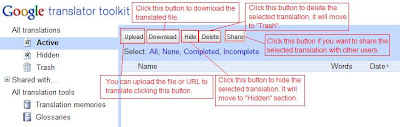
In this section, you can upload the file or add the URL to translate on Google translator toolkit.
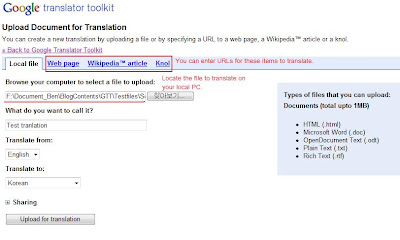
Click “Upload” button on Active section, then you move to the next page where you can locate the file to translate on your local PC or enter the URL that you want to translate including Knol and Wikipedia™ article URL. You can specify the name of translation. This name will be used like a project name that is displayed on Active section. You can also specify source and target languages for translation. When you click the “Sharing” icon, all the instructions about adding and creating TM will be shown. The point is you can add TM to use during translation or create TM that will be automatically stored on the web space that Google provides if you don’t have any prepared TM, and this TM can be shared with other users if you want (you can select the option).
 Once you click "Upload for translation” button, it goes to translation mode (I would like to call that). It shows all the information you need for translation such as statistic information, translation search result from TM, dictionary, and source texts on the left and target text on your right. The most amazing thing is that it shows automatically machine translated target texts even if you don’t add any TM.
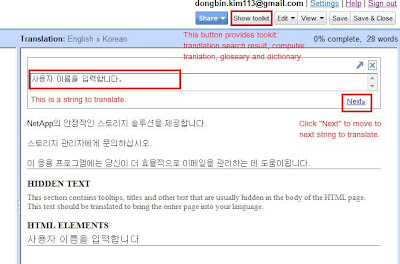
As you can see in the above screenshot, all these translation on the target area is computer translation and the quality was way better than I have expected. Test sentences, however, was simple sentences and I am not sure how it would work on complex and long sentences. This machine translation function can be enabled or disabled on the settings page.
![]()
In this section, you can upload the file or add the URL to translate on Google translator toolkit.
Click “Upload” button on Active section, then you move to the next page where you can locate the file to translate on your local PC or enter the URL that you want to translate including Knol and Wikipedia™ article URL. You can specify the name of translation. This name will be used like a project name that is displayed on Active section. You can also specify source and target languages for translation. When you click the “Sharing” icon, all the instructions about adding and creating TM will be shown. The point is you can add TM to use during translation or create TM that will be automatically stored on the web space that Google provides if you don’t have any prepared TM, and this TM can be shared with other users if you want (you can select the option).
Once you click "Upload for translation” button, it goes to translation mode (I would like to call that). It shows all the information you need for translation such as statistic information, translation search result from TM, dictionary, and source texts on the left and target text on your right. The most amazing thing is that it shows automatically machine translated target texts even if you don’t add any TM.As you can see in the above screenshot, all these translation on the target area is computer translation and the quality was way better than I have expected. Test sentences, however, was simple sentences and I am not sure how it would work on complex and long sentences. This machine translation function can be enabled or disabled on the settings page.

Subscribe to:
Posts (Atom)